
Perfect for home and office decor
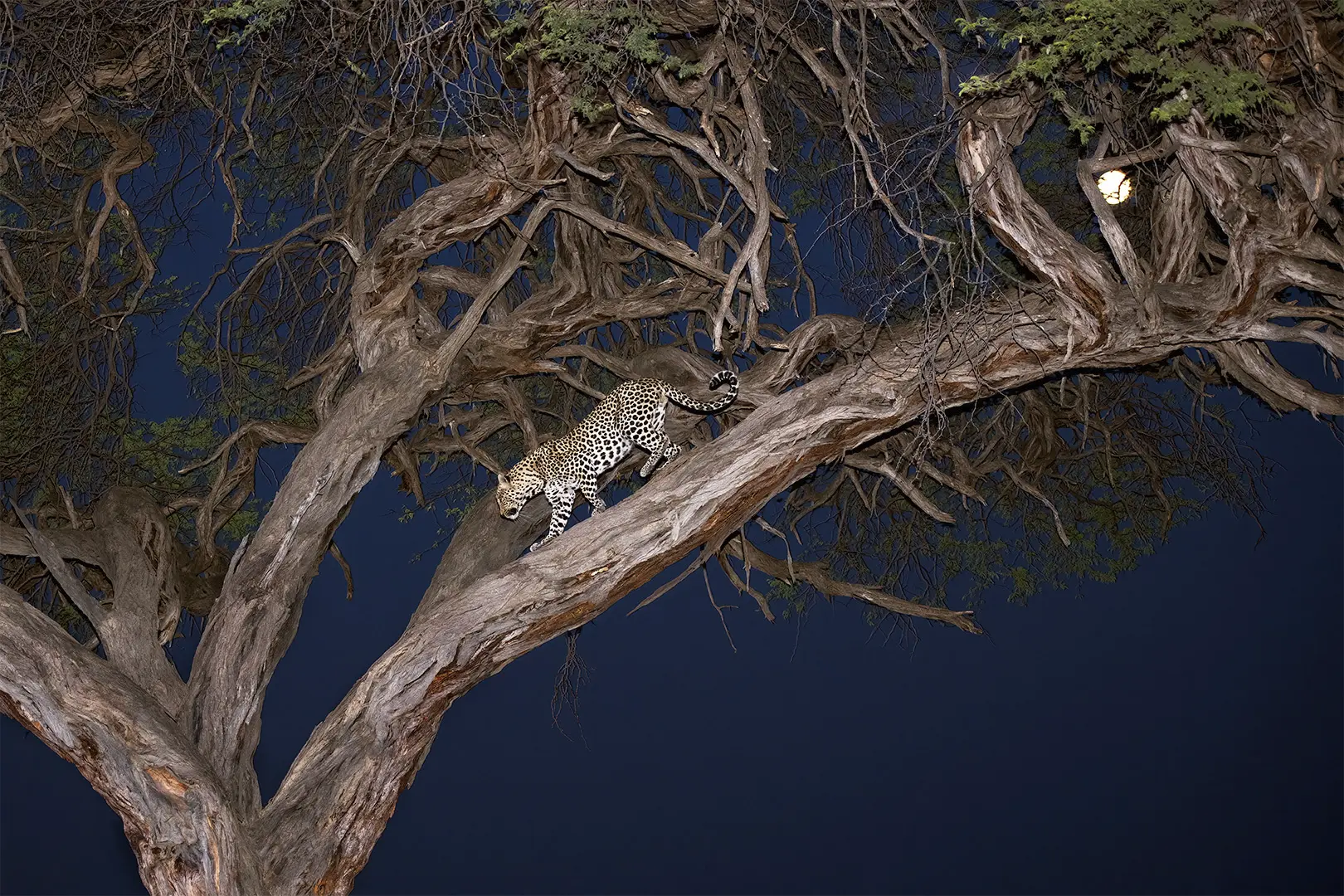
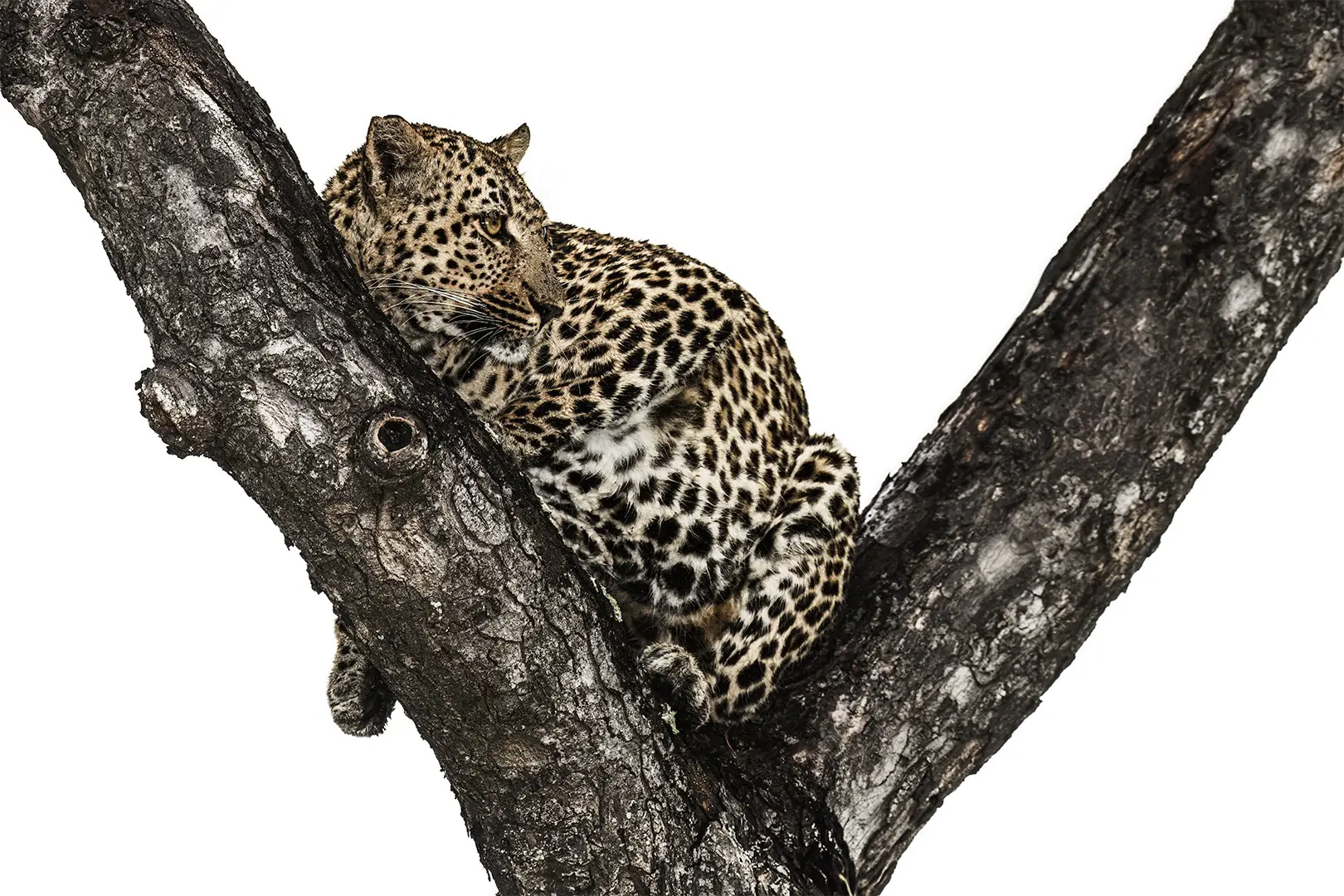
12 unique photos taken in unique locations, which you can later get framed and hang on your wall.
Available with COLOR or B&W photos

Perfect for home and office decor
High Quality FineArt Paper
Inkjet glossy - UPM Digi Finess gloss (250 g/m²)
Fine art paper with a glossy surface that provides excellent color reproduction with clear contrasts. Printed in high quality inkjet process.

Perfect for home and office decor
“Best Photo Lab Worldwide”
Printed by WhiteWall, one of the world’s leading professional photo labs and a multi-year winner of the TIPA “Best Photo Lab Worldwide” award. Their works are exhibited in many of the world’s leading galleries for fine-art photography.

Perfect for home and office decor
Two sizes available
A2 Landscape: 59,4 x 42,0 cm; photo area - app. 53,4 x 35,6 cm
A3 Landscape: 42,0 x 29,7 cm; photo area – app. 38 x 25,3 cm

Perfect for home and office decor
One-sided print
Each month (photo) printed on a separate page.
You get 12 photos for later use.

Perfect for home and office decor
External binding
The spiral binding does not overlap the photo area.
Black binding color.

Perfect for home and office decor
Two background colors
The calendar background available in black or in white color. Choose the one which suits you best.

Perfect for home and office decor
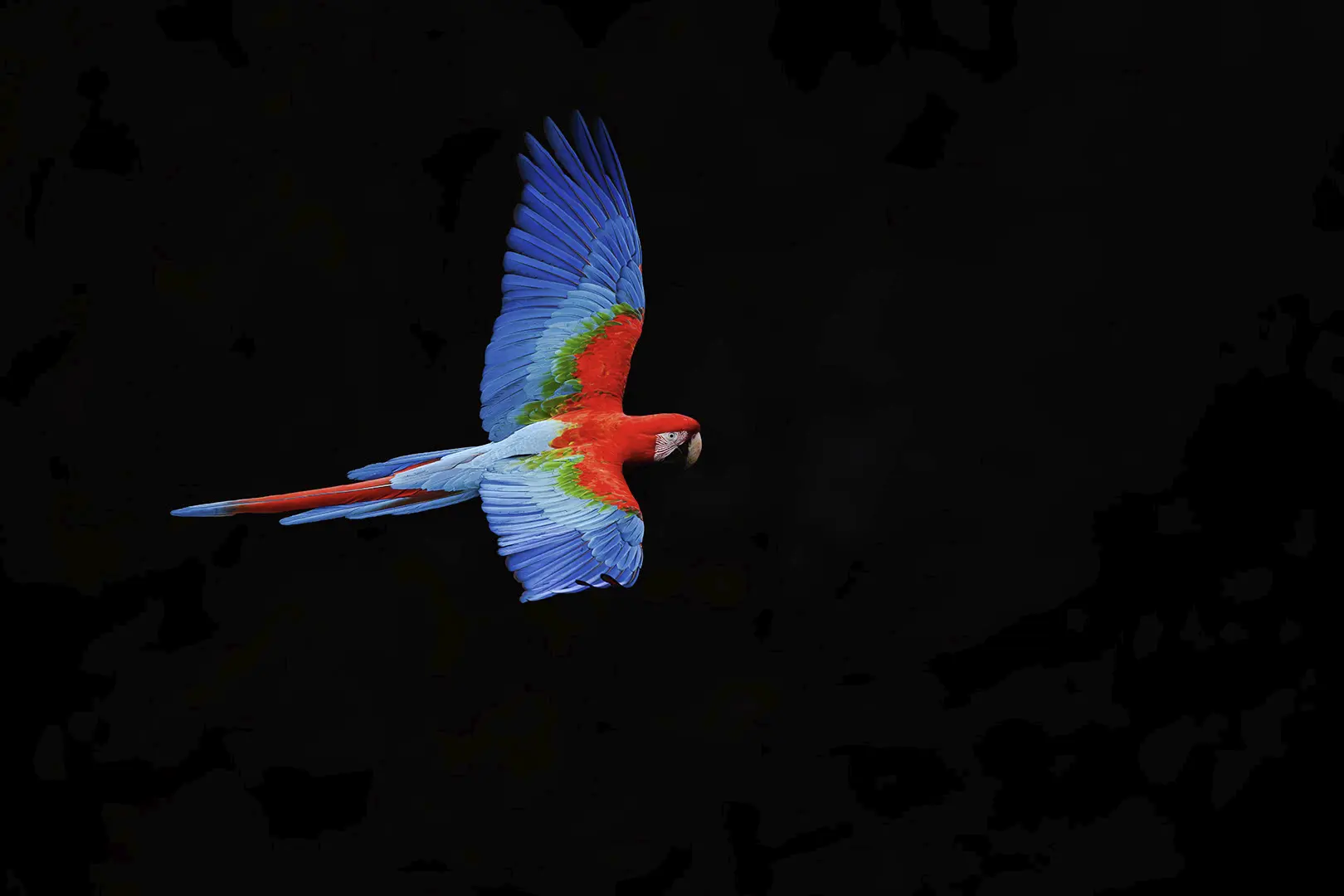
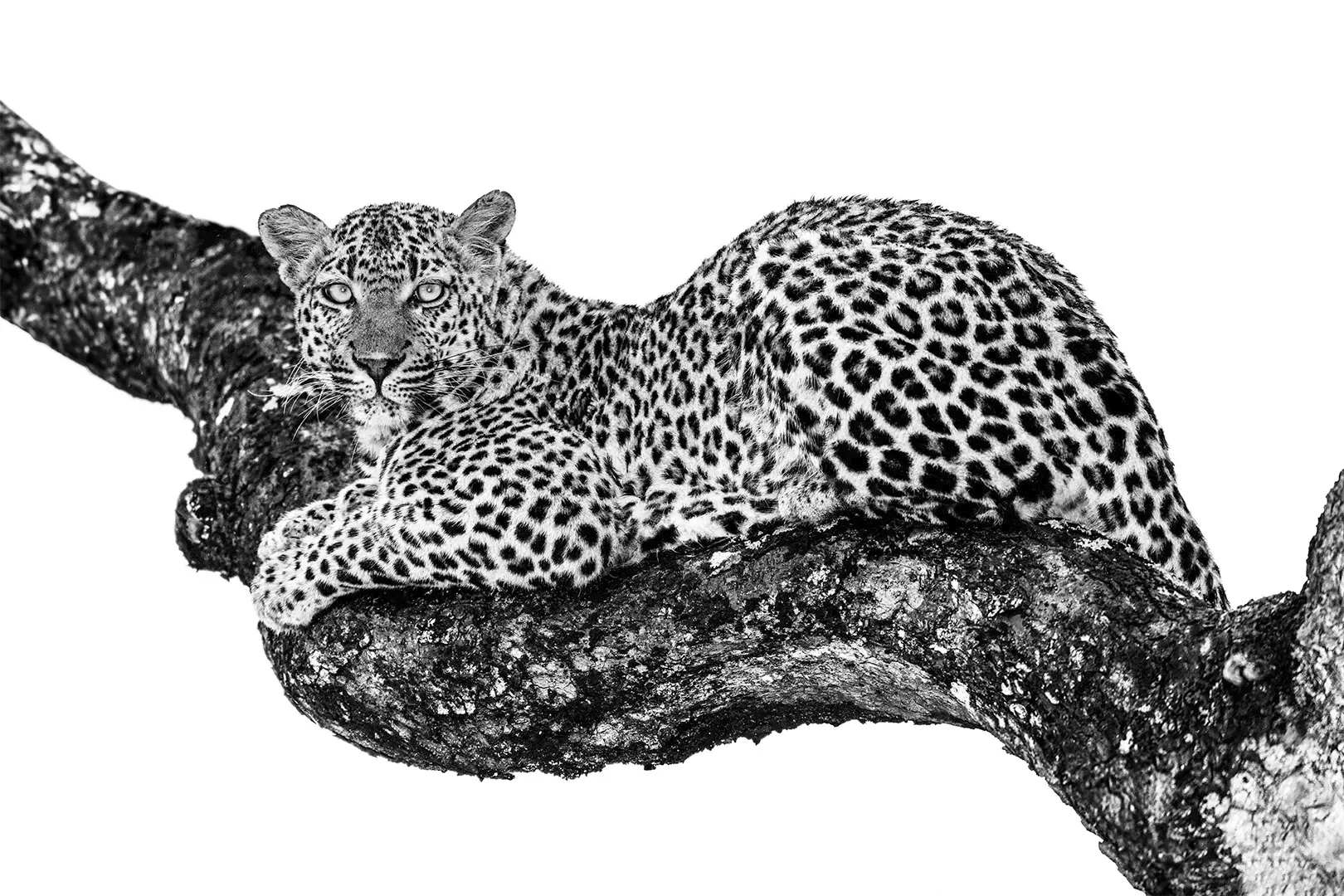
Truly wildlife photos
All photos represent wild, untamed animals in their natural habitat.

Perfect for home and office decor
Individual photos
Most photos used for this calendar available as large-format (150x100cm) FineArt gallery-grade prints on the best-in-class photo paper (Hahnemühle FineArt Baryta).

Perfect for home and office decor
Photo downloads
High resolution files (5400×3600 px) avaialble for download.
Suitable for prints up to 45×30 cm at 300 dpi, or bigger if upscaled by a professional photo lab.

Perfect for home and office decor
Short delivery times
Printed in Germany upon your order.
Delivered in the safe, custom-made stiff flat packaging directly from the photo lab to your door.
App. delivery time: 7-10 working days.

Perfect for home and office decor
Shipment to 25 countries within Europe

Perfect for home and office decor
Gift that will attract attention every month

You need to select an option for each field (Dimensions, Print/File and Borders) to display the price and make the Add to Cart button active.
If you want to select a PRINT:
Once the options have been selected as intructed above, you will see the external dimensions of the print including the selected wide borders, the net price (excluding VAT and shipping) and you will be able to add the print to the cart.
NOTE: You also need to have all the options selected and the price displayed to view the photo in the selected size in Augmented Reality (AR). If options are not selected, the size of the print displayed in Augmented Reality (AR) will be 150×100 cm, which may not be the size you want.
If you want to select a FILE:
Once the options have been selected as intructed above, you will see the net price (excluding VAT) and you will be able to add the file to the cart.
If you get a message Sorry, no products matched your selection. Please choose a different combination., it means that you either haven’t selected the options as instructed above or the selected photo is not available in the selected dimensions.
Should you need more information, please see Prints or Contact us.
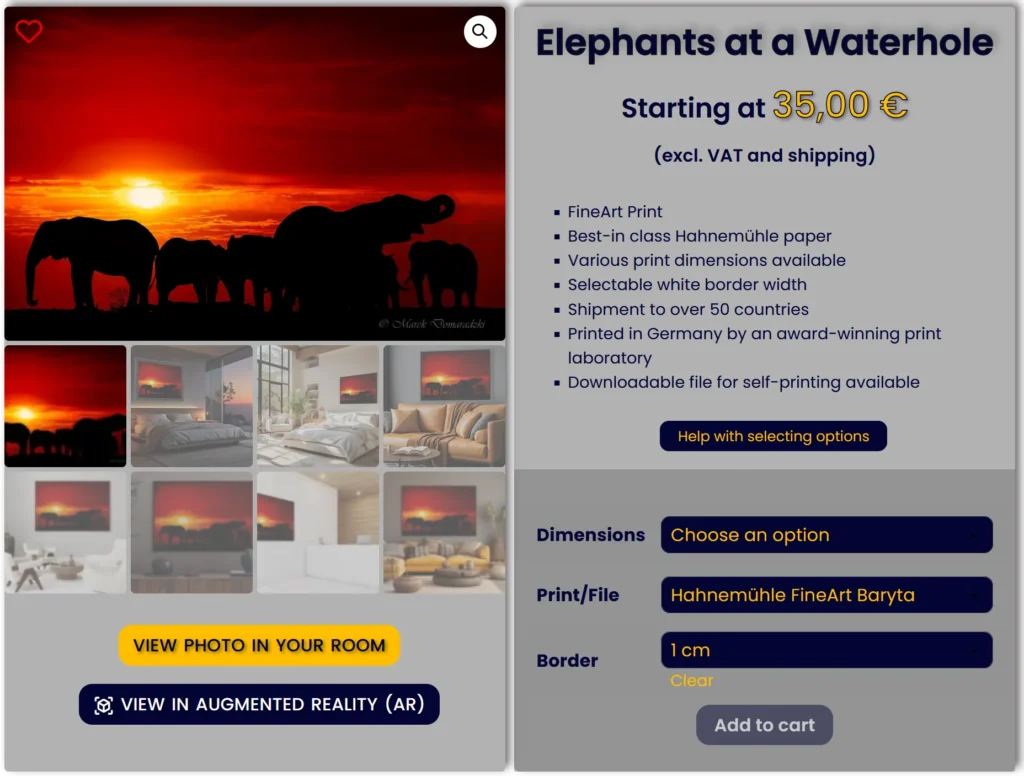
This is the second tool available on this website allowing you to view the selected photo on your wall and is intended to help you see how the selected photo will match your interior, combine with your furniture and room colors.
VIEW IN AUGMENTED REALITY (AR) – available on product pages – allows you to superimpose the selected photo on your wall, in scale, in real time through your mobile device camera.
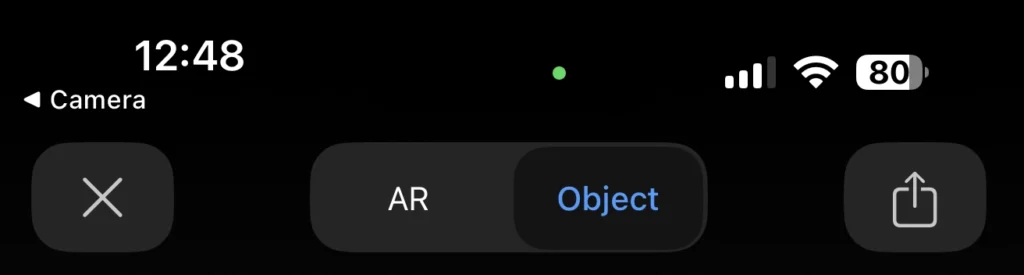
To use the tool, you don’t need to read the following information/instructions. You can just launch the tool wherever you see it available on this website and follow the on-screen prompts. If you, however, would like to know how the tool works before-hand and how to get the most of it, I recommend reading the following information. Anyway, you can always come back to this page if it turns out you need some help or additional information.
This feature allows you to view the selected photo on your wall and is intended to help you make up your mind which photo will match your interior, combine with your furniture and room colors, in what size and give you some idea about framing style you may like.
The VIEW PHOTO IN YOUR ROOM tool is accessible from each Product page.
Although you can use this tool on your mobile device, due to a much better viewing experience, we highly recommend using it on your desktop/laptop.
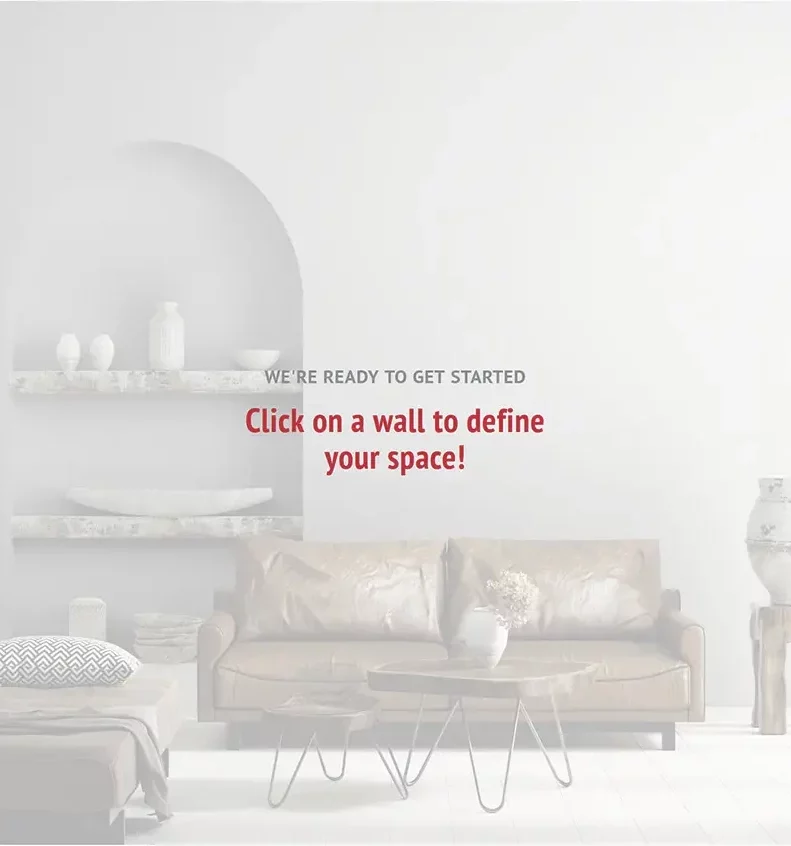
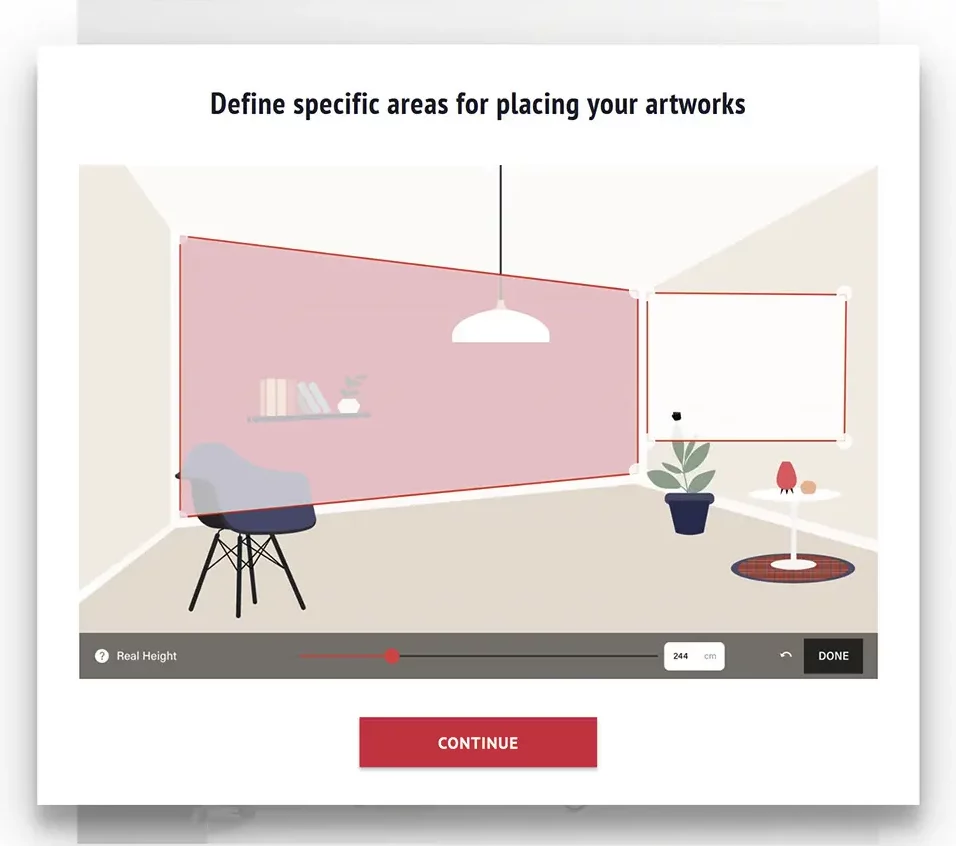
If you click on Help in the top right-hand corner of the screen, you will display a visual demonstration how to mark the area on your wall within which you will position and visualize your photo.
Please, note that the visual demontration (Help) can’t be launched from the slideshow level.
When watching the tutorial, please notice that if the walls in your uploaded room picture are shown in perspective, you have to mark the area accordingly.
Click the CONTINUE button to proceed.
You will see a white rectangular area superimposed over your wall.
This is the area within which you will be able to virtually hang your photo.
You need to adjust the size of that white area.
Hint: We recommend marking a much bigger area than the photo itself as it will give you more flexibility with positioning and sizing of your photo or will allow you to place more photos side by side.
Hint: Your photo will always be positioned parallel to the sides of the white area. If you don’t have walls in perspective, don’t move the bigger corner/round handles.
You can click on the white area and reposition it on the wall.
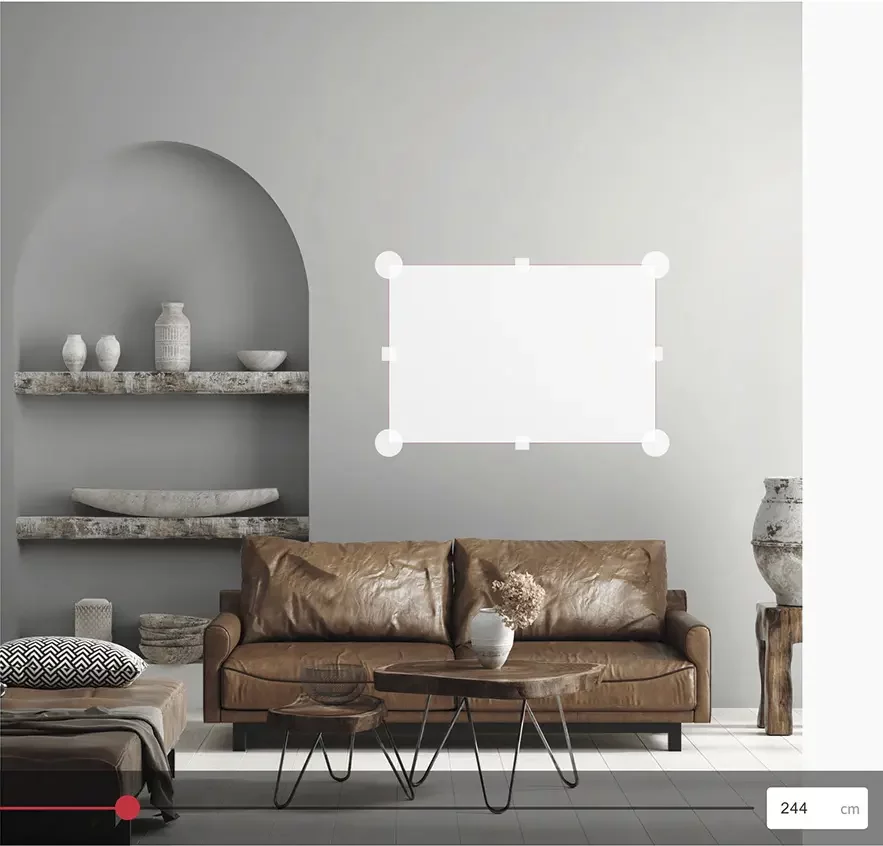
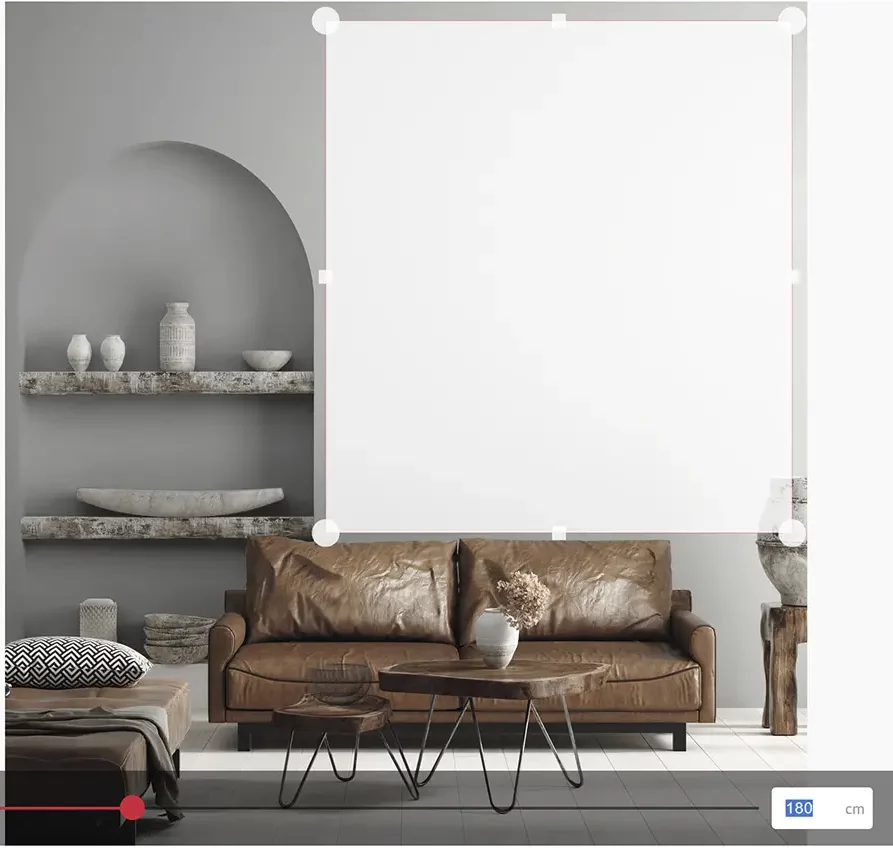
Enter the real height of the area you have adjusted (not of the wall) in cm or drag the slider at the bottom of the screen until you get the correct height.
Please, note that the more accurately you provide the height, the more accurately the photo will be displayed in scale relative to the real dimensions of your interior.
Click the red DONE button.
Drag the red corners to adjust the size of the photo.
Hint: If you first hover the mouse cursor over one of the red handles until the photo size is displayed and then start dragging the handle, you will see the changing dimensions while resizing the photo.
When adjusting the size, please bear in mind the standard sizes in which a given photo is available. You can display the adjusted photo size by hovering the mouse cursor over one of the red handles.
You can reposition the photo on you wall within the area you have marked previously.
If you hover the mouse cursor over the red handle, you will see the size of the photo in scale.
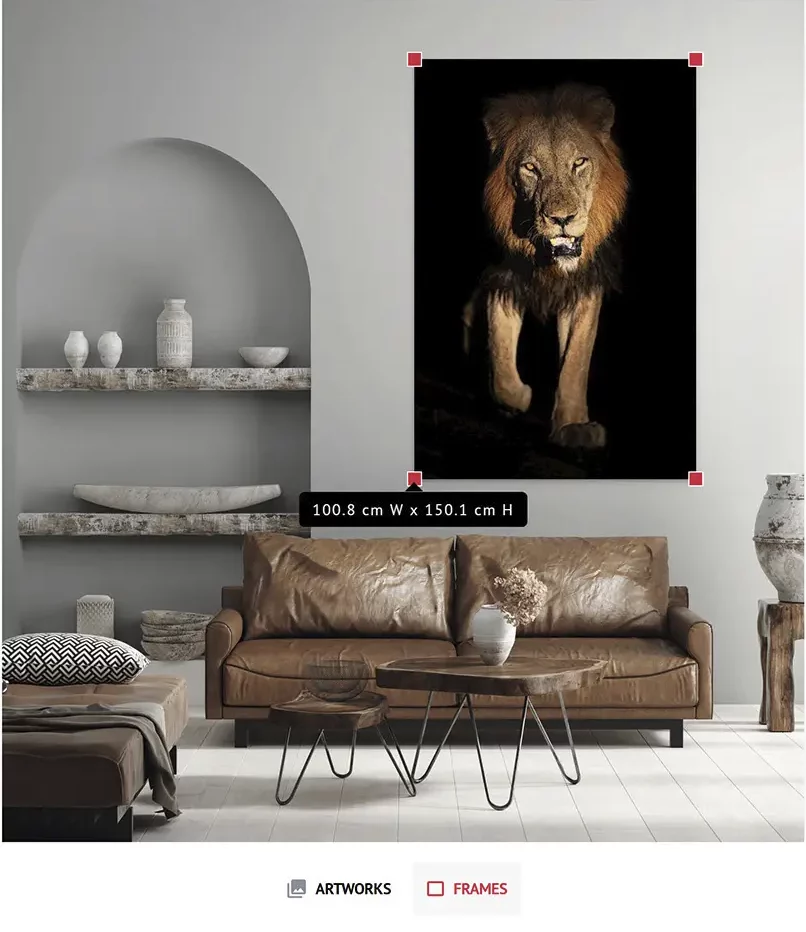
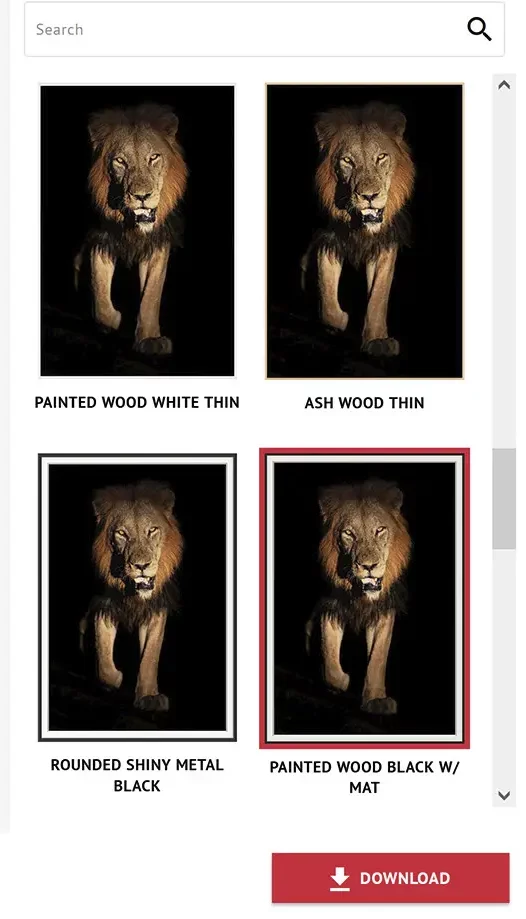
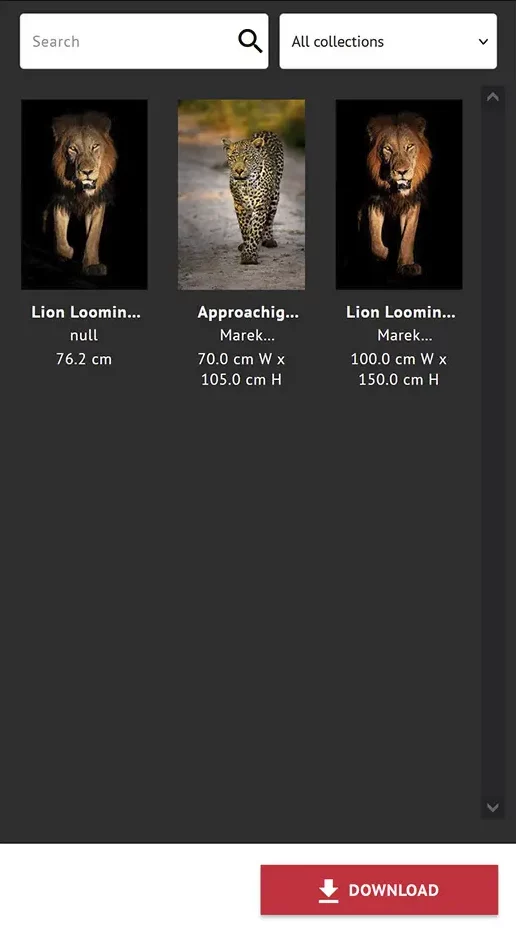
Click the ARTWORK button at the bottom of the screen to display the window with other photos. Click it again to close it.
If you want to change the photo, click the current photo (you will see the red handles) and the Delete key on your keyboard to make room for a different photo or drag the current photo out of the wall area.
You can search photos by name typing it in the Search box and/or select photos from different galleries using a drop-down list.
Hint: Artworks are simply the photos you can also see on the Galleries and Shop pages and in the Virtual Exhibitions. They are categorized into galleries in the exactly same way.